Members and Access
Open Team Settings > Members to review active members and pending invitations. Owners and admins can invite members, edit permitted roles, cancel pending invitations, and remove members.
Team roles
Team roles apply across every application in the team.
| Role | Access |
|---|---|
| Owner | Full access, including billing and Team Settings. Owners can change the plan, view invoices, manage billing, and configure owner-only security controls. |
| Admin | Can manage members, applications, and Team Settings, but cannot access owner-only billing actions. |
| Developer | Can manage applications and view team members. |
| Viewer | Can view applications and team members without changing them. |
| App-level Permissions | Does not grant team-wide application access. Assign a separate role for selected applications. Available on plans with fine-grained permissions. |
Assign more than one owner so the team does not depend on a single account. The only owner must assign another owner before demoting their own role.
Invite members
- Open Team Settings > Members.
- Select Add New Member.
- Enter one or more email addresses.
- Choose a team role, or choose App-level Permissions and select access for the relevant application.
- Select Invite.
The invitation remains pending until the recipient accepts it. A pending invitation can be cancelled from the member list.
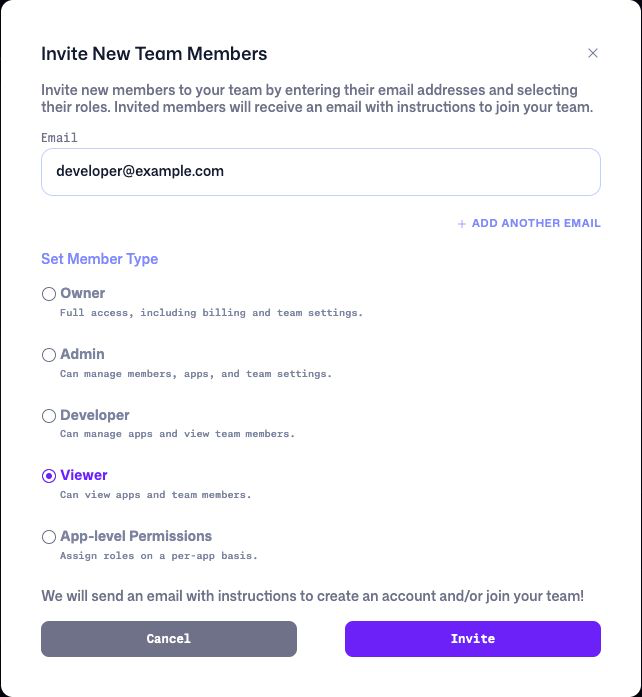
Example assignments
| Person | Suggested access |
|---|---|
| Engineering lead responsible for the workspace | Owner |
| Team administrator who manages people and applications | Admin |
| Engineer who configures SDKs and investigates production data | Developer |
| Support or product teammate who only needs to inspect data | Viewer |
| External developer working on one application | App-level Developer for that application |
| Stakeholder reviewing one application | App-level Viewer for that application |
Use the least-privileged role that still lets the member complete their work. Review access when responsibilities or external engagements change.
App-level permissions
Fine-grained permissions let a person have different access in different applications:
| App role | Access |
|---|---|
| Admin | Full application access, including managing application members. |
| Developer | Can view and manage the application but cannot manage team members. |
| Viewer | Can inspect application data without changing it. |
| No Access | The member cannot open that application. |
App-level permissions are useful for agencies, contractors, or organizations that separate production applications between groups. Team-wide roles still grant access across the team and take precedence over a narrower app assignment.
Require two-factor authentication
The team owner can enable Mandatory 2FA Access on supported plans. When enabled, members without two-factor authentication lose access until they configure it in their profile.
Before enabling the requirement:
- configure two-factor authentication on the owner account;
- notify members and allow time for enrollment;
- assign a second owner with working two-factor authentication;
- confirm how your organization will recover access if a member loses an authenticator.
SAML Single Sign-On is available for qualifying Enterprise plans and is configured with Bugfender support. See the SSO configuration guide.