Devices
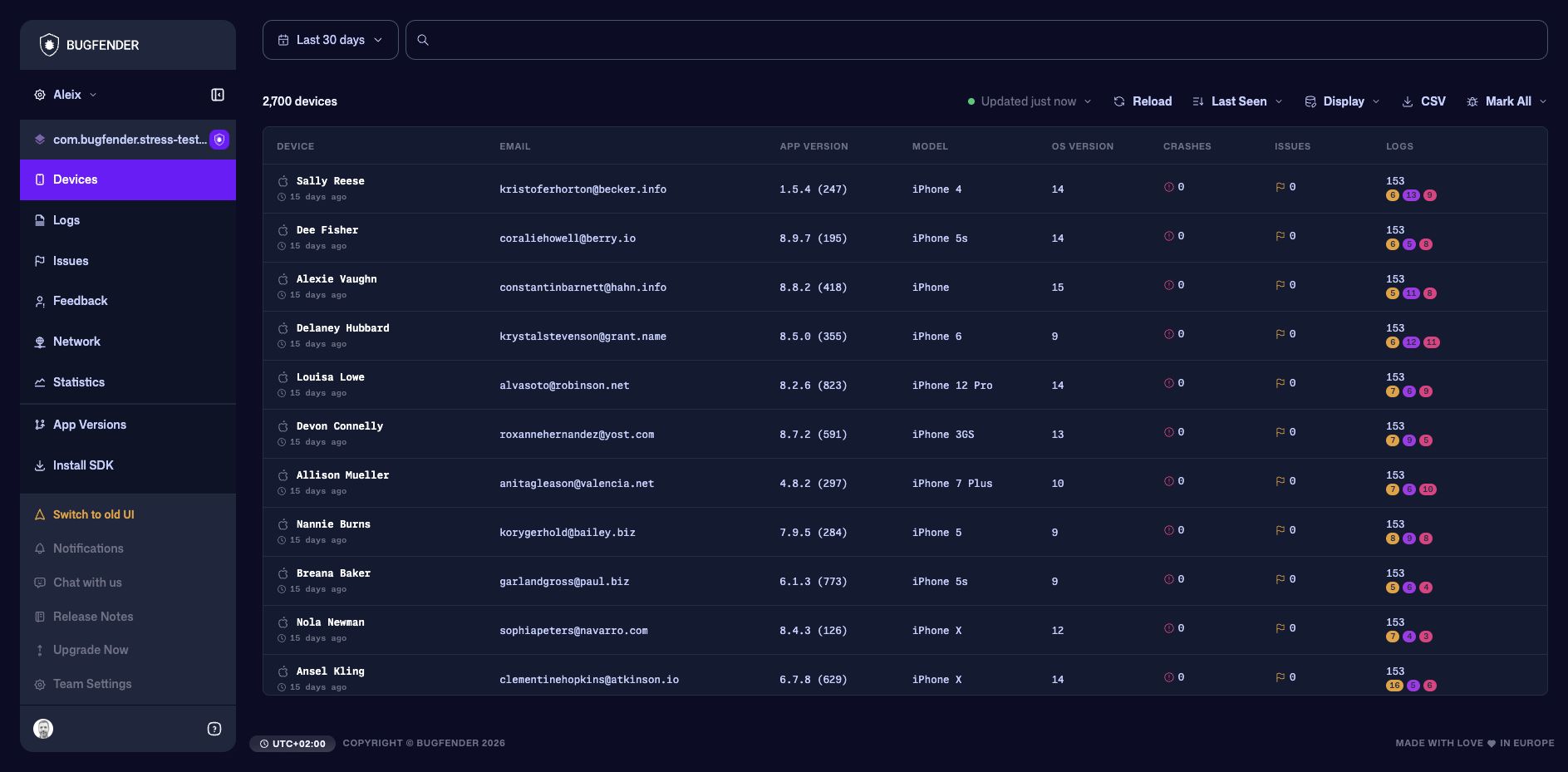
The Devices view lists the installations that sent data for the selected application and date range. Use it when you know which user, device, or installation is affected and want to move from that identity to its telemetry.
Devices or Logs?
Devices and Logs lead to the same underlying events from different starting points.
| Start with Devices when… | Start with Logs when… |
|---|---|
| You know the user, device name, device ID, model, application version, or custom data. | You know the message, tag, identifier, or approximate time, but not which device produced it. |
| You need to inspect the installation and its environment before reading events. | You want to search events across every matching device in the selected application. |
| You want the log viewer scoped to one device. | You want an application-wide timeline, then narrow the investigation from the evidence. |
Selecting a device opens the same log viewer used by the Logs view, scoped to that device. The device version also provides Device Info and keeps searches, downloads, and timeline navigation within that installation.
Find a device
- Select a date range that includes the reported behavior.
- Search by installation metadata, log activity, or custom device data.
- Sort or change the displayed columns when you need to compare devices.
- Select the device to open its log timeline.
Useful structured filters include:
| Filter | Use it to |
|---|---|
| Device Name, Model, OS, OS Version, or Language | Match the installation's current metadata. |
| Current App Version | Find devices currently reporting a particular version. |
| App Version in Logs | Find devices that produced logs from a version during the selected range, even if they later upgraded. |
| Logging Enabled | Find installations for which collection is currently enabled or disabled. |
| Log Content | Find devices whose logs contain a word or phrase. |
| Crashes, Issues, Logs, Warnings, Errors, or Fatals | Compare event counts with equal-to, greater-than, or less-than conditions. |
| A custom key | Match the latest available value attached by your application. |
Sort by Last Seen, Device Name (A-Z), or Device Name (Z-A) when those options are useful. The list summarizes crash, issue, and log activity associated with each device. These counts are useful for prioritization, but always inspect the underlying events before drawing a conclusion.
The browser remembers supported Devices filters for this application. A later return from the applications dashboard or another product view can restore them; clear stale filters if a device appears to be missing.
Inspect device information
Open Device Info from a device log page to see the identifiers and environment recorded by the SDK. Depending on the platform, this can include the device name, model, OS and SDK versions, language, application version and build, and your custom key-value data.
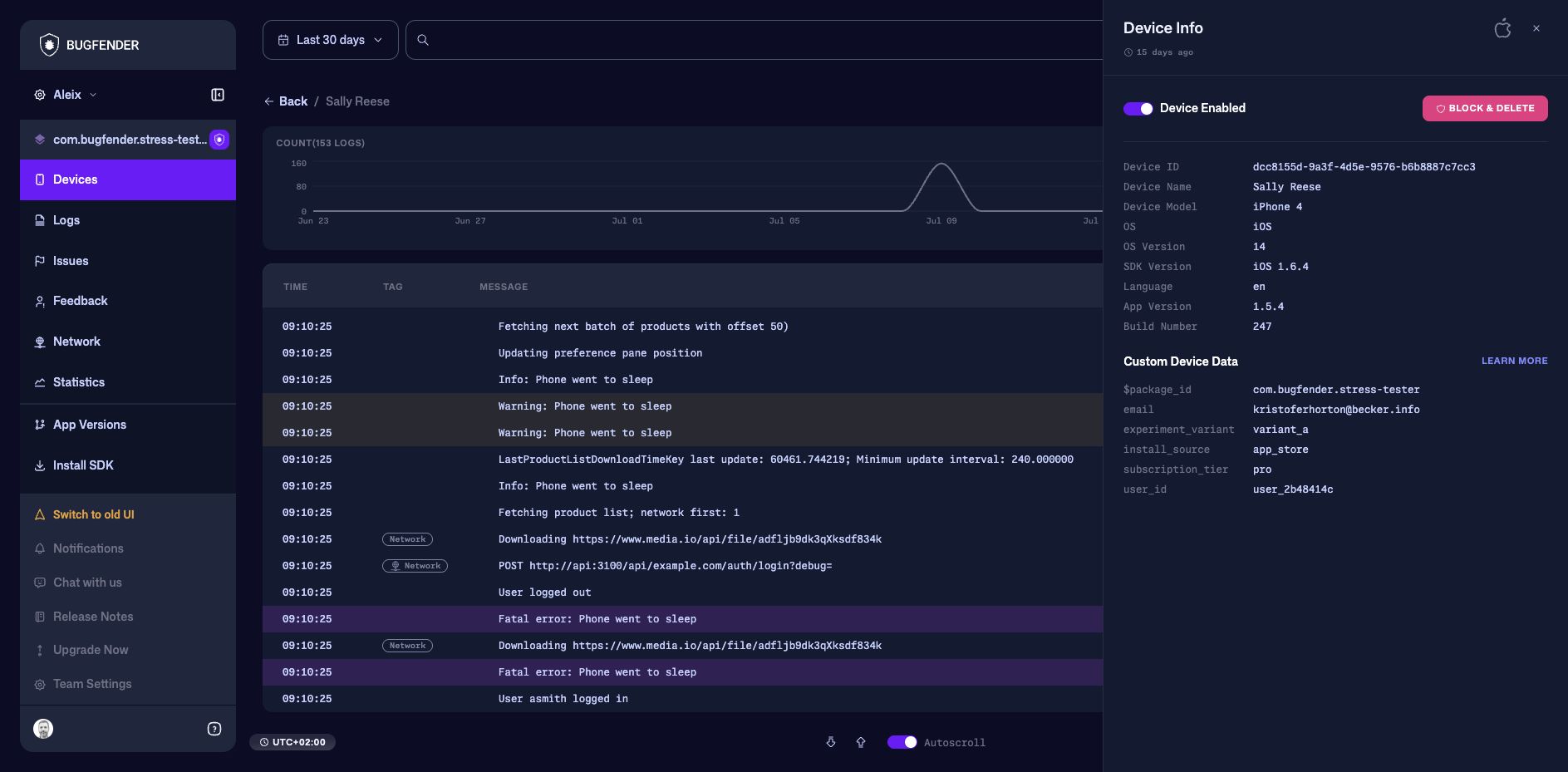
You can also:
- enable or disable data collection for the device;
- copy identifiers for use in support or engineering workflows;
- use Custom Device Data to connect the installation to your own user, account, or environment context.
The displayed name can be generated from device, application, and custom-data fields, or hidden as Unknown, according to the application's Device Name settings.
Block & delete is a destructive privacy action. Confirm that you selected the intended device and understand your organization’s retention requirements before using it.
A useful support workflow
Start from a user identifier or email, confirm the application and OS versions in Device Info, and then inspect the logs around the time the user reported the problem. If you find a repeated failure, continue in Issues; for request failures or latency, continue in Network.