Product Guide
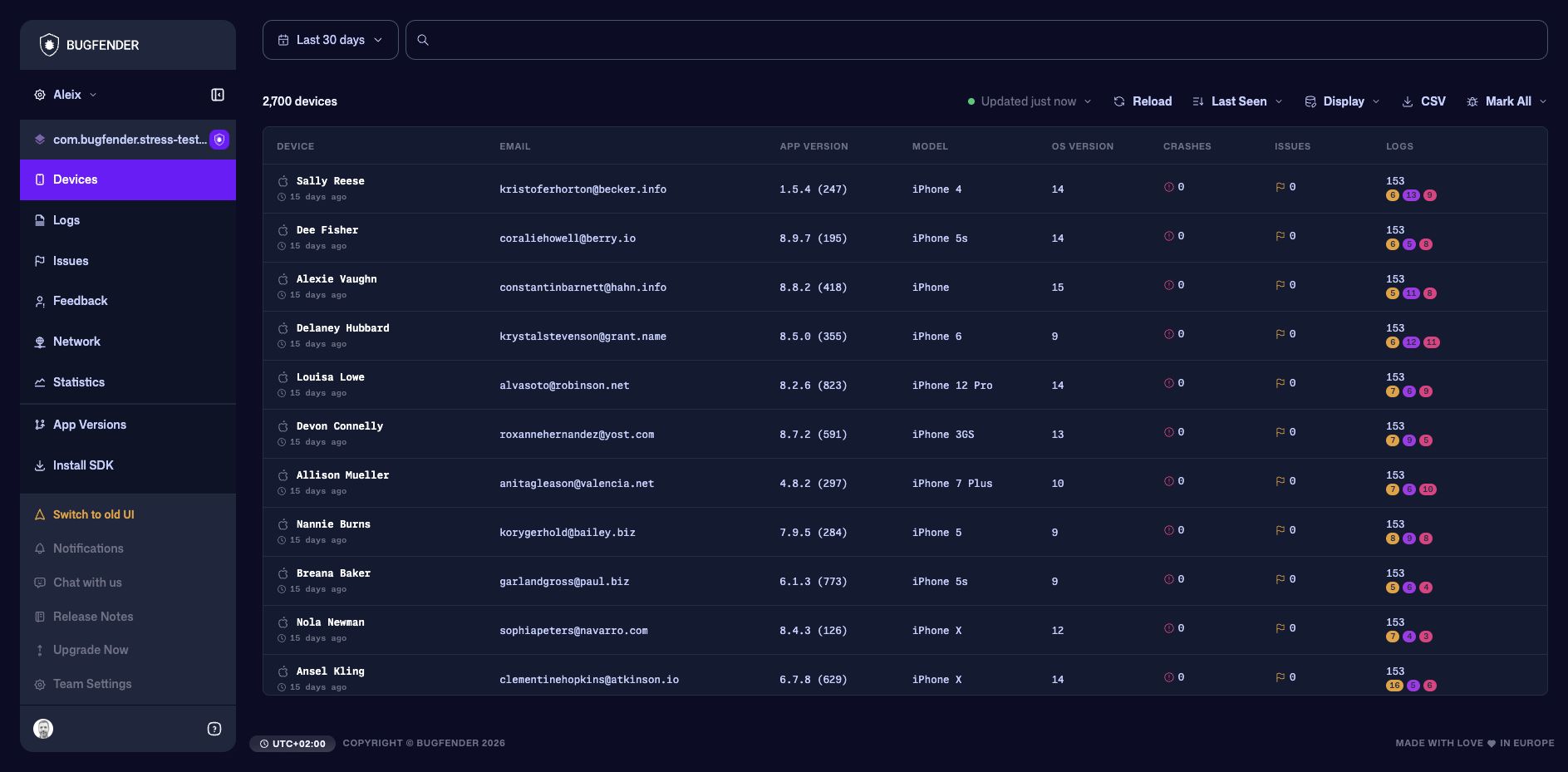
The Bugfender Dashboard brings telemetry from your applications into focused views. Start with the applications dashboard, then use an application's sidebar to move between devices, logs, issues, feedback, alerts, network activity, statistics, versions, SDK installation, and settings. Team Settings manages the people, plan, usage, and billing shared across applications.
Choose a starting point
| When you want to… | Start with |
|---|---|
| Compare recent activity and choose an application | Applications Dashboard |
| Find a user, inspect one installation, or attach custom context | Devices |
| Search events across devices or follow a device timeline | Logs |
| Prioritize repeated failures and crashes | Issues |
| Read reports submitted from inside the application | Feedback |
| Detect important conditions automatically | Alerts |
| Investigate slow or failing requests | Network |
| Compare usage and reliability trends | Statistics |
| Check adoption or upload debug symbols | App Versions |
| Connect a new application to Bugfender | Install SDK |
| Configure collection, naming, integrations, and access | Settings |
| Invite members, review usage, or manage the plan | Team Settings |
Common controls
Most views share a few controls:
- Date range limits the investigation to the relevant period. A longer range gives more context but can return more results.
- Search narrows the current view. Start with a device name, email address, log text, issue title, or endpoint.
- Refresh reloads the latest matching data. Views that support automatic refresh also let you pause it while investigating.
- Display controls which columns or details are visible.
- Download or CSV exports the current data when that action is available.
The available controls can vary by account, plan, application, enabled feature flags, and selected date range.
Remembered filters
The dashboard stores supported page filters in the current browser for each application and view. When you return through dashboard navigation, views such as Devices, Logs, and Issues can restore the search you previously used. Filters also remain in the page URL when needed for bookmarking or sharing.
Clear unwanted filters before beginning an unrelated investigation, especially on a shared workstation.