Issues and Crashes
The Issues view groups repeated reports so you can measure impact without treating every occurrence as a separate problem. Crash reports and issues reported through the SDK can be investigated from this product area.
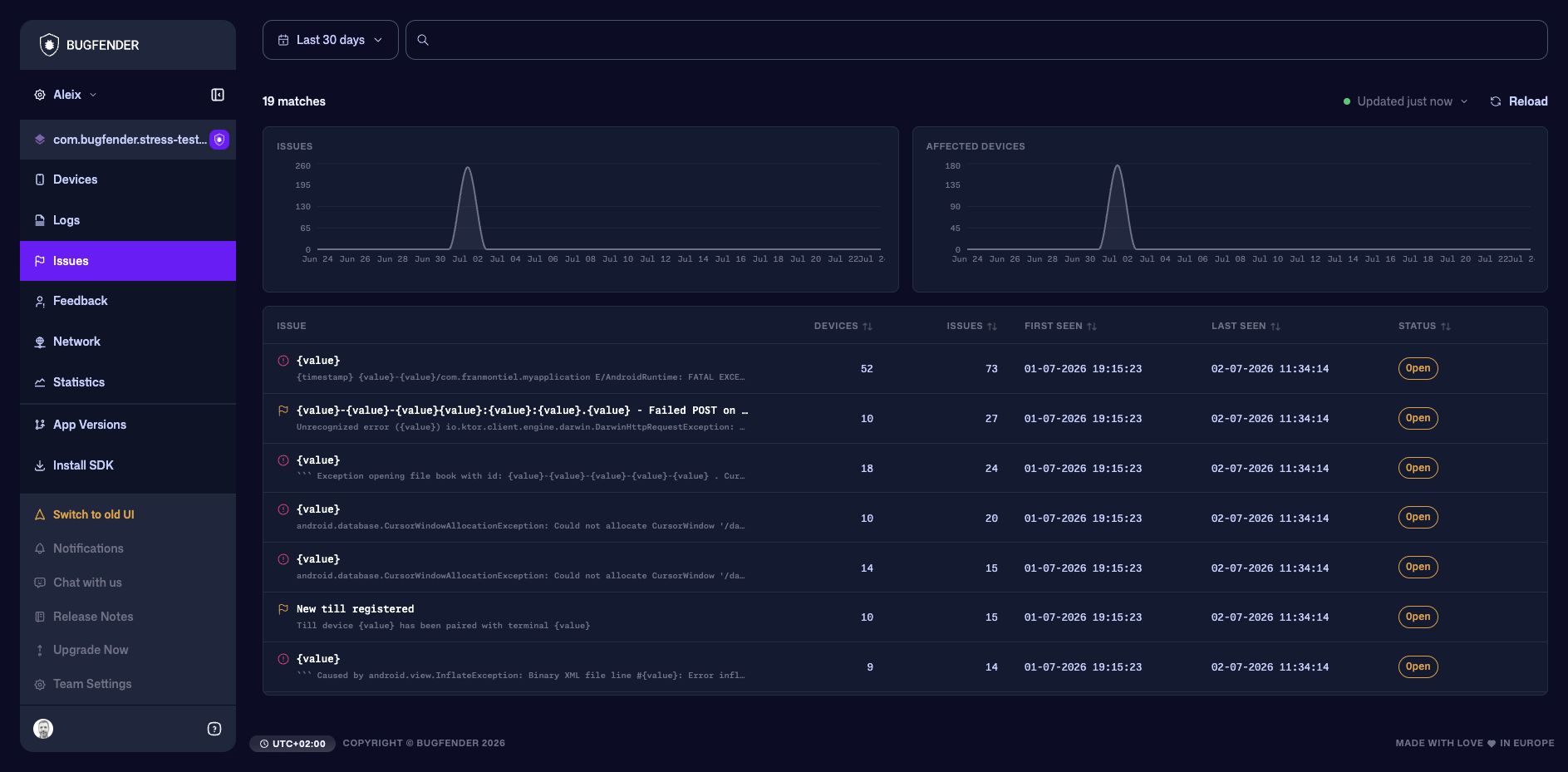
Prioritize an issue
Use the summary charts to compare Issues, New Issues, and Affected Devices over the selected date range. Then use the table to compare groups:
- Devices shows how widely the issue affects installations.
- Issues shows the number of matching occurrences.
- First Seen helps identify when the problem began.
- Last Seen shows whether it is still happening.
- Status records its triage state.
A high occurrence count on one device can mean something different from a lower count spread across many devices. Check both values before opening a group.
Track status
Issue and crash groups support these statuses:
| Status | Suggested use |
|---|---|
| New | The group has not yet been triaged. |
| Open | The group is accepted and needs attention. |
| In Progress | Someone is actively investigating or fixing it. |
| Resolved | A fix or resolution is available but may still need verification. |
| Closed | Work and verification are complete. |
| Muted | Keep the group without treating new occurrences as active work. |
| Invalid | The group is not an actionable product problem. |
Developers and administrators can update status from the list or group detail. Agree on status conventions within your team so filters and counts remain meaningful.
Inspect a group
Open a group to see:
- occurrence and affected-device totals;
- first- and last-seen times;
- issue activity and affected-device charts;
- breakdowns by device, operating system, and application version;
- a representative report or stack trace;
- symbol status and upload actions for crashes.
Use the previous and next controls above the report to move through individual occurrences in the group. Select View logs to open an occurrence in its device timeline and inspect the surrounding events.
Select View all devices to open the dedicated affected-devices list. It shows each installation's environment, occurrence count, and latest matching report, subject to the active date range and filters.
Merge duplicate groups
An administrator can merge two issue groups or two crash groups when they represent the same underlying problem. Bugfender chooses the group with more occurrences as the canonical group and combines the reports from both.
A merge cannot be undone. Confirm that both groups represent the same problem and have the same report type before proceeding.
Triage workflow
- Set a date range that covers the suspected release or incident.
- Filter by report type, status, application version, or identifying text.
- Compare affected devices and occurrences.
- Open the group and inspect its charts, environment breakdown, and individual reports.
- Open a representative occurrence in Logs.
- Check the affected application versions.
- Update the status as your team investigates and resolves the problem.
- Merge duplicate groups only after confirming they have the same cause.
For readable native stack traces, upload the debug symbols or mapping files required by your platform.