Search and Filter Logs
Use the search control to build filters without memorizing a query language. Select a field, choose an operator and value, and combine filters to reduce the timeline to the relevant events.
The date range always applies first. If expected events are missing, widen it before changing the search.
Available filters
| Field | Options | Example |
|---|---|---|
| Text | is, contains, starts with, ends with | Text contains authentication failed |
| Level | Fatal, Error, Warning, Info, Debug | Level is Error |
| Log Type | All, App, Network | Log Type is Network |
| Tags | One or more Bugfender or user-defined tags | Tags is Network, API |
| Device UDID | is, is not | Device UDID is not a test device |
| Device Model | is, is not, contains, starts with, ends with | Device Model starts with iPhone |
| Device Name | is, is not, contains, starts with, ends with | Device Name contains Sally |
The device fields are available from the application-wide Logs view. They are omitted from a single-device timeline because that view is already scoped to one installation.
Filter by tag
There are two ways to add a tag filter:
- Open the search control, select Tags, and choose one or more values.
- Select a tag badge directly in the timeline to add that tag to the current search.
The picker separates tags generated by Bugfender, such as Network, from tags created by your application. Selecting multiple values inside one Tags filter matches any of those tags. Other filters still narrow the result, so Tags is Network, API together with Level is Error means an error carrying either selected tag.
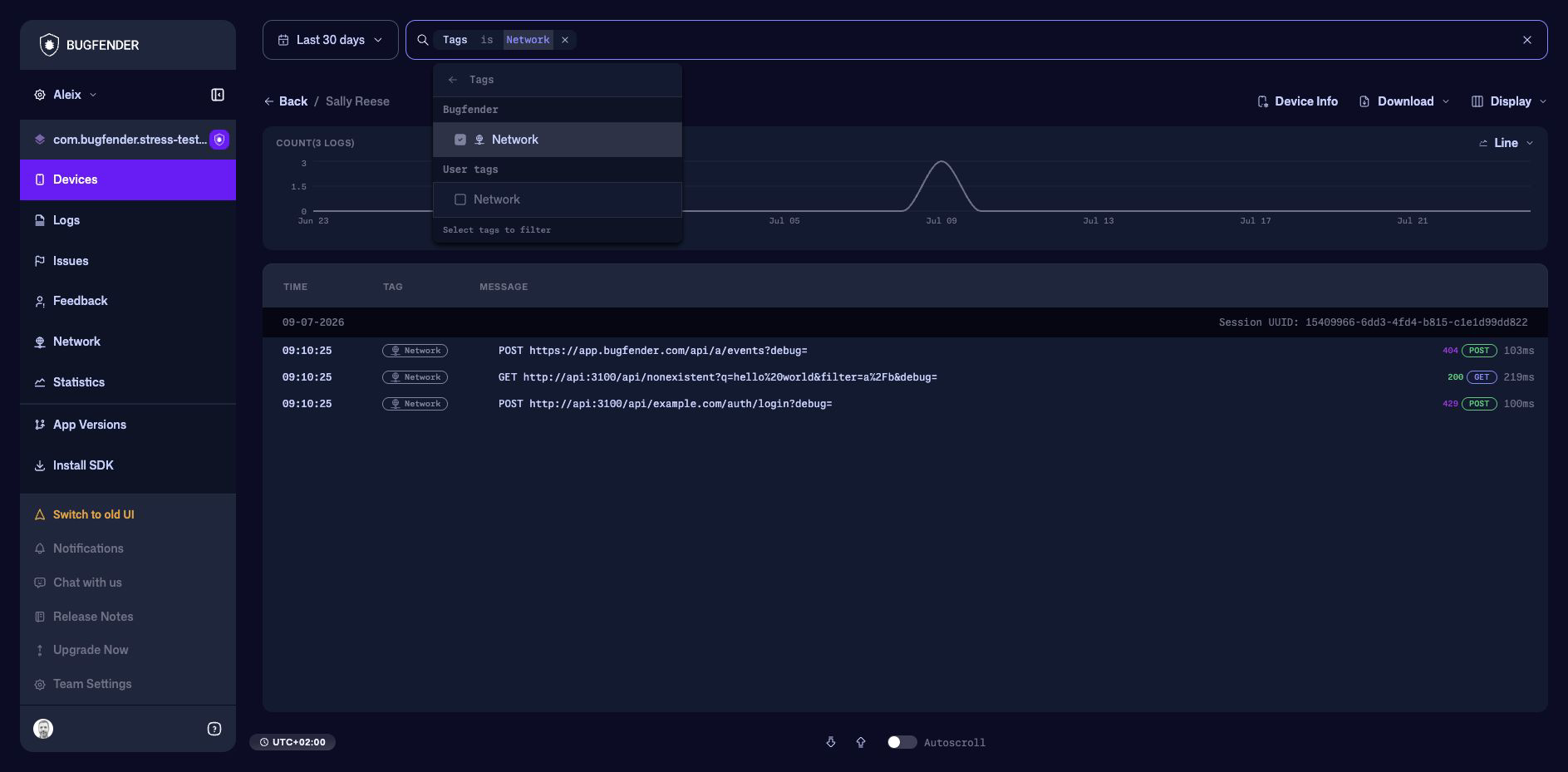
The friendly label shown in the picker can differ from the stored tag value. Use the picker or the clickable badge when possible so Bugfender applies the correct value.
Common filter examples
| Question | Filters |
|---|---|
| Which errors mention authentication? | Level is Error and Text contains authentication |
| Show only captured HTTP events | Log Type is Network |
| Show events tagged as API or database work | Tags is API, Database |
| Find logs from one model across the application | Device Model is the selected model |
| Exclude a known test installation | Device UDID is not the test device identifier |
Log Type is Network filters by the event kind. Tags is Network filters by the tag attached to an event. They often produce similar results for captured requests, but they answer different questions.
Filter or Find?
Free text supports two modes:
- In the default Filter mode, the timeline contains only events matching the text.
- Turn on Find to keep the surrounding timeline visible and highlight matching text.
The Find switch appears after you enter free text. Structured filters remain active, while the free text becomes a highlight. For example, add Level is Error, enter authentication failed, and turn on Find to move through that phrase while keeping other error messages visible as context.
In Find mode, the status bar replaces the newest/oldest controls with:
- the current match and total match count;
- Older match and Newer match buttons.
Use Filter to make a large dataset smaller. Use Find to reconstruct the sequence around a known message.
Read the activity chart
When a search is active, the chart summarizes the volume of matching events across the date range. Use it to identify bursts and gaps before opening the timeline. The chart type control can switch between line, area, and bar views.